
A KIDDOLY APP WALKTHROUGH
Getting started with your AAC communication board.
From a picture to a spoken message. Get to know Kiddoly’s communication tools, one small step at a time.
First, a little context.
This guide is for parents and caregivers exploring Kiddoly with children, including autistic children and children with different communication needs. It explains how the app works, without promising a developmental outcome.
Kiddoly is available on the App Store for iPhone and iPad. This walkthrough shows how its communication tools work; the website itself is not a talking board. Download on the App Store.
A FAMILIAR PLACE TO START
Choose a category.
Explore the words inside.
The category screen helps you browse. Core Words brings words such as “I”, “you”, “want”, and “need” together.
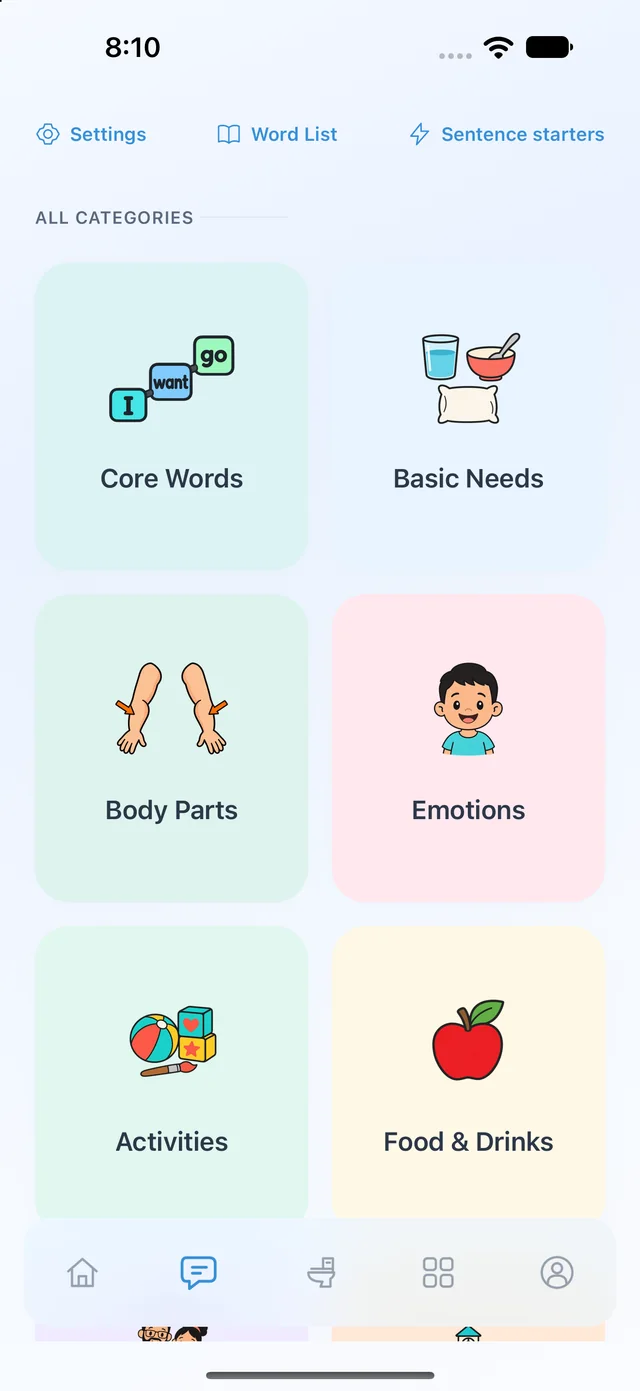
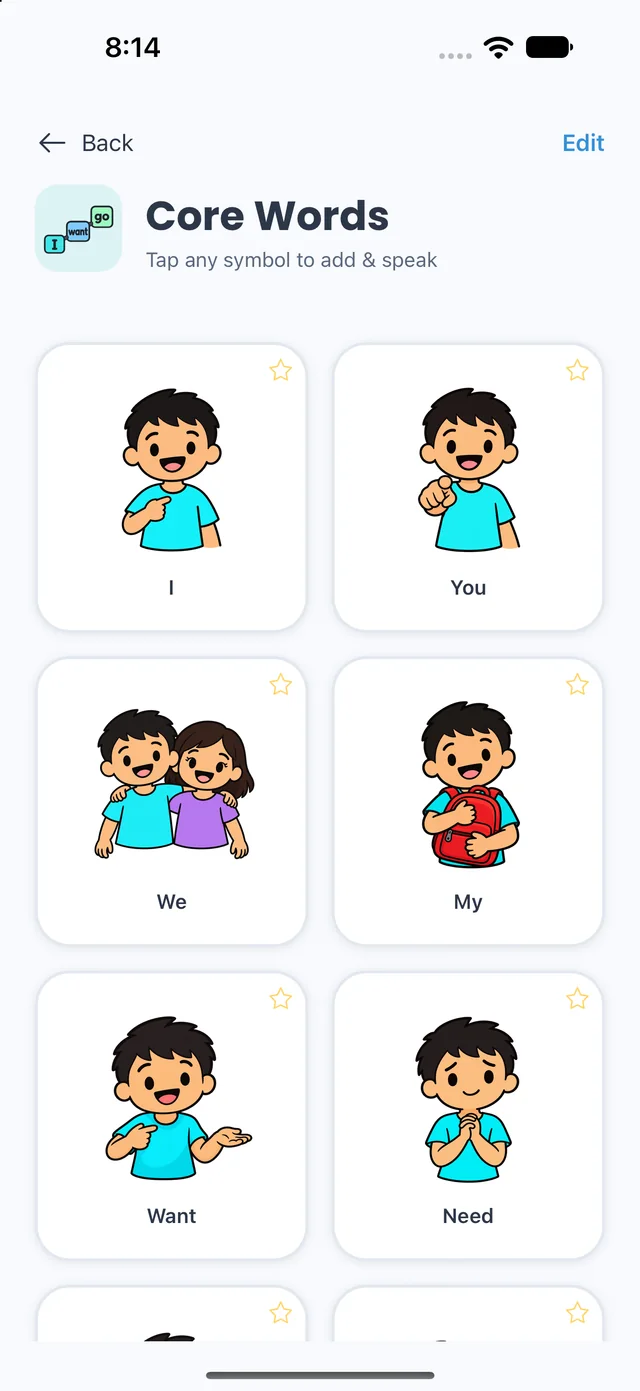
Open Communicate and find a category
Open Communicate in the Kiddoly app. The category screen groups pictures into places such as Core Words, Basic Needs, Body Parts, Emotions, Activities, and Food & Drinks. Choose a category to see its cards.
Tap a picture to add and hear a word
In the normal board view, tap a card. Kiddoly speaks the word and adds it to the sentence builder. For example, tapping “I” and then “want” adds those words in order. You can move to another category to find another word.
Open the sentence builder and press Speak
After you add a word, the floating sentence builder appears. Tap it to open the sentence editor and see your selected cards. Press Speak to hear the assembled message. A message can be a single word; you do not have to fill a sentence.
Change the message or start again
In the sentence editor, use a word’s remove control to take it out. Use Clear all words to empty the message and begin another one. Closing the editor returns you to browsing without needing to edit the board itself.
Keep familiar words in Favorite Words
Use the star on a card to add or remove it from favorites. Once you have saved favorites, Favorite Words appears on the Communicate screen. Open it to find those saved words together.
Explore sentence starters and personal cards
Back on Communicate, Sentence starters opens ready-to-use phrases. For something personal to your family, Kiddoly also offers custom photo and voice cards with Premium. Check the in-app plan details before subscribing.
TRY THE CONTROLS TOGETHER
A small practice message.
Open Core Words, tap “I”, then tap “want”. Open the sentence builder and press Speak to hear “I want”. Remove “want” to try the remove control, then clear the message when you are finished. This is simply a way to learn the interface; your child can use the words that matter to them.
BEFORE YOU GO
A few helpful answers.
What does AAC mean here?
AAC stands for augmentative and alternative communication. This walkthrough explains Kiddoly’s picture cards and spoken messages. It is a guide to the app’s controls, not an assessment or therapy programme.
Can I follow this walkthrough on the parent website?
The communication board is in the Kiddoly iPhone and iPad app. The parent portal shows synced profiles and summaries; it does not provide the interactive communication board.
Why do the controls look different on my device?
The layout adapts to iPhone, iPad and screen orientation. These screenshots show example screens; your child’s board, selected words and app version may look different.
What if I cannot hear a card?
Check your device volume and audio output, including connected headphones. Try another built-in card. If the problem continues, contact support with your device and app version, without sending private child details or recordings.
Does my child need to complete every step?
No. These steps explain the controls so a parent or caregiver can become familiar with the app. They are not a lesson plan or a requirement for your child. For help choosing communication support, speak with a qualified speech and language professional.